
REDCAMBRIA CONNECT / WINDOWS
Your rig.
Ready.
The native Windows app for your SimHub plugin, saved pairing, and RedCambria glasses display. Sign in with Google to download Connect. No payment details required.
01 / GET CONNECT
Sign in. Download. Go.
For the Windows x64 PC running SimHub. The glasses beta also needs an invitation and an approved secure connection to your rig.
Checking your account…
Already registered? Sign in →
The server checks your confirmed account before delivering the installer. No GitHub account is required.
On your phone? Send this to your PC.
See the Windows app
Same RedCambria design. Built for your desktop.
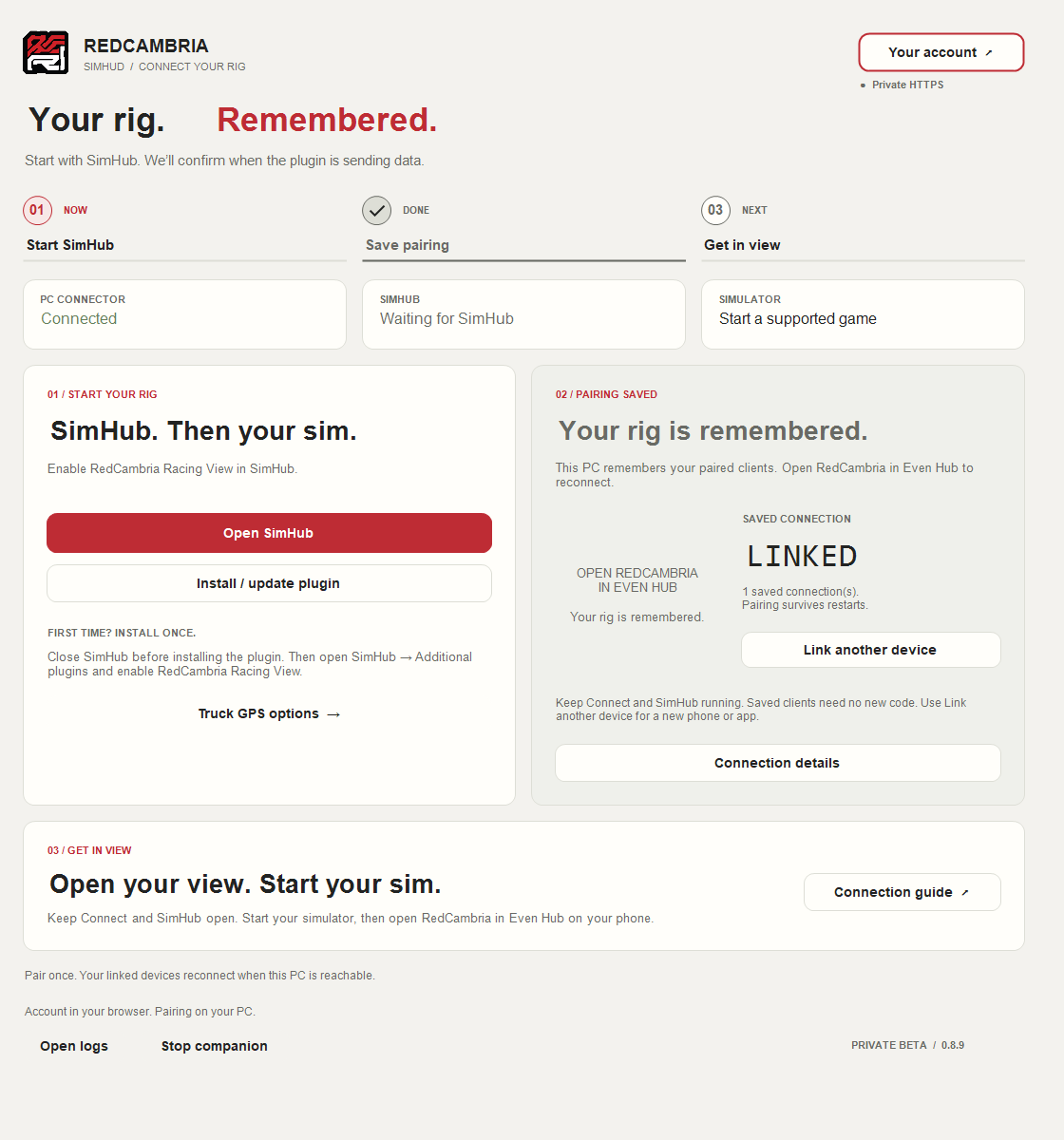
Resize freely: two columns on wide windows, stacked cards on narrow ones. Completed steps soften; their checkmark and progress line settle once. The account button opens your saved browser sign-in.
02 / CONNECT ONCE
Three steps. Then it remembers.
- 1
Open Connect and install the plugin.
Close SimHub, choose Install / update plugin, then reopen SimHub and enable RedCambria Racing View under Additional plugins.
- 2
Pair your Even Hub client.
Scan the QR in Connect with your phone camera. On the page that opens, tap Copy link for Even Hub. Open RedCambria in Even Hub, paste the link and tap Link PC. Your address and code travel together.
- 3
Start your simulator. Choose your view.
Keep Connect and SimHub running. Your supported client saves its pairing locally, so returning sessions normally need no new code.